Excel’s Weird (In)Convenience: COUNTIF, AVERAGEIF, & STDEVIF

Excel is an attractive tool for those who consider themselves ‘not a math person’.  In particular, it visually organizes information and has many built-in functions that can make your life easier. You can use math if you want, but there are functions that can help even the non-math folks

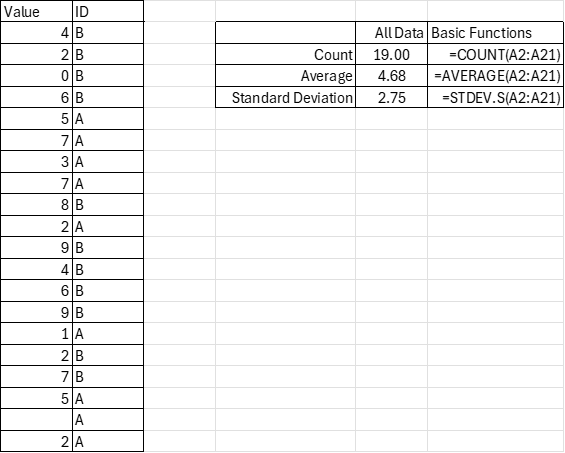
If you are a moderate Excel user, then you likely already know about the AVERAGE and COUNT functions. If you’re a little but statistically inclined, then you might also know about the STDEV.S function (STDEV is deprecated). All of these functions are super easy and only have one argument. You just enter the cells (array) that you want to describe, and you’re done. Below is an example with the ‘code’ for convenience.

=COUNT(A2:A21)
=AVERAGE(A2:A21)
=STDEV.S(A2:A21)

If you do some slightly more sophisticated data analysis, then you may know about the “IF” function. It’s relatively simple; if a proposition is true (such as a cell value condition), then it returns a value. If the proposition is false, then it returns another value. You can even create nested “IF”s in which a condition being satisfied results in another tested proposition. Back when excel had more limited functions, we had to think creatively because there was a limit to the number of nested “IF” functions that were permitted in a single cell. Prior to 2007, a maximum of seven “IF” functions were permitted. Now the maximum is 64 nested “IF”s. If you’re using that many “IF”s, then you might have bigger problems than the “IF” limitations.

Another improvement that Excel introduced in 2019 was easier array arguments. In prior versions of Excel, there was some mild complication in how array functions must be entered (curly brackets: {}). But now, Excel is usually smart enough to handle the arrays without special instructions.  Subsequently, Excel has introduced functions that combine the array features with the “IF” functions to save people keystrokes and brainpower.

Looking at the example data we see that there is an identifier that marks the values as “A” or “B”. Say that you want to describe these subgroups. Historically, if you weren’t already a sophisticated user, then you’d need to sort the data and then calculate the functions for each subgroup’s array. That’s no big deal for small sets of data and two possible ID values, but it’s a more time-consuming task for many possible ID values and multiple ID categories.

The early “IF” statements allowed users to analyze certain values of the data, such as those that were greater than, less than, or equal to a particular value. But, what if you want to describe the data according to criteria in another column (such as ID)? That’s where Excel has some more sophisticated functions for convenience. However, as a general matter of user interface, it will be clear why these are somewhat… awkward.

Continue reading

Cheers to Sumproduct!

I teach macroeconomics, finance, and other things.

Often, I use Excel to complete repetitive calculations for my students. The version that I show them is different from the version that I use. They see a lot more mathematical steps displayed in different cells, usually with a label describing what it is. But when I create an answer calculator or work on my own, I usually try to be as concise as possible, squeezing what I can into a single cell or many fewer cells. That’s what brings me to to the sumproduct excel function that I recently learned. It’s super useful I’ll illustrate it with two examples.

Example 1) NGDP

One way to calculate NGDP is to sum all of the expenditures on the different products during a time period. The expenditures on a good is simply the price of the good times the quantity that was purchased during the time period. The below image illustrates an example with the values on the left, and the equations that I used on the right. That’s the student version. There is an equation for each good which calculates the total expenditure on the individual goods. Then, there is a final equation which sums the spending to get total expenditures, or NGDP.

Continue reading

Everyone’s an Expert: Easy Data Maps in Excel

I love data, I love maps, and I love data visualizations.

While we tend not to remember entire data sets, we often remember some patterns related to rank. Speaking for myself anyway, I usually remember a handful of values that are pertinent to me. If I have a list of data by state, then I might take special note of the relative ranking of Florida (where I live), the populous states, Kentucky (where my parents’ families live), and Virginia (where my wife’s family lives). I might also take special note of the top rank and the bottom rank. See the below table of liquor taxes by State. You can easily find any state that you care about because the states are listed alphabetically.

A ranking is useful. It helps the reader to organize the data in their mind. But rankings are ordinal. It’s cool that Florida has a lower liquor tax than Virginia and Kentucky, but I really care about the actual tax rates. Is the difference big or small? Like, should I be buying my liquor in one of the other states in the southeast instead of Florida? Without knowing the tax rates, I can’t make the economic calculation of whether the extra stop in Georgia is worth the time and hassle. So, the most useful small data sets will have both the ranking and the raw data. Maybe we’re more interested in the rankings, such as in the below table.

But, tables take time to consume. A reader might immediately take note of the bottom and top values. And given that the data is not in alphabetical order, they might be able to quickly pick out the state that they’re accustomed to seeing in print. But otherwise, it will be difficult to scan the list for particular values of interest.  

Continue reading